 9:45 PM
 Kushal Khare

How to search your registry
You can easily open the registry by simply typing "regedit" into the RUN command line. Follow the instructions below:
1. Click Start
2. Click Run
3. Type Regedit into the command line and press enter. The registry should load for your review.
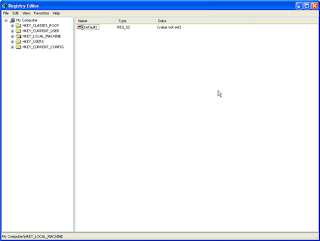

Editing the Registry can be used to remove files and programs that wont delete. Often the registry files are not able to be removed by the program's installer. This can cause major conflicts since Windows will still try loading the program during startup. Find the program in question and remove all files and folders in the registry branch.
Backing Up Your Registry and Files
WARNING--Remember to back up your registry before attempting to fix PC registry problems. If you are using a registry cleaner, this is done automatically. You can backup your entire registry by clicking "Start" and "Run" and type: ntbackup.exe, Click OK. Follow the instructions. However to copy individual registry keys follow the instructions below:
1. Click Start, and then click Run.
2. In the Command Line, type regedit, and then click OK.
3. Find and then click the subkey that contains the value that you want to edit.
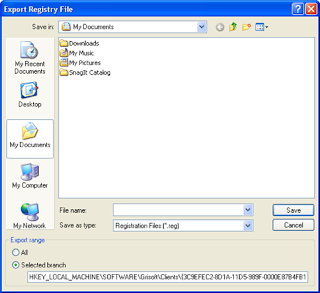
4. Under the File menu, click Export.
5. In the Save in box, select a location where you want to save the Registration Entries (.reg) file, type a file name in the File name box, and then click Save.
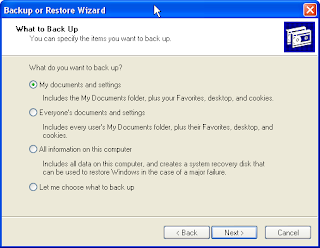
By backing up all your files using ntbackup.exe. You will also save errors and unwanted software into the backup log file. If you you are trying to delete individual software and not tweaks setting or make sweeping changes to the registry, use the export registry option.
Easy Registry Edits
By tweaking how Windows searches the registry, you can speed up your computer process and cut down on process time and clutter. Try editing the the registry key: HKEY_LOCAL_MACHINE> SYSTEM >CurrentControlSet>Control>Session Manager>Memory Management> PrefetchParameters
This action will help you speed up your applications load times considerable. Here is how:
1. Click Start
2. Click Run
3.Type regedit
4. Find this registry key:
HKEY_LOCAL_MACHINE> SYSTEM >CurrentControlSet>Control>Session Manager>Memory Management> PrefetchParameters
5.Change the value of EnablePrefetcher, from its default setting which is 3 to the value of 5,and then restart your computer.
Windows Registry and Slow Startup Time
When your computer loads Windows must check the registry to organize the overall configuration of the all the software of the programs. However, it must review the each registry entry one by one. If you have any errors, this can exponentially increase your computer startup time. The best way to increase start time is to cut down on the registry entries. Unless you want to spend ages looking for duplicate entries and errors, you may want to use software to handle this task. However, if you know what you are after you can easily fix PC registry errors by pinpointing and cleaning the registry. Scan your Computer for Duplicate Registry Keys with a Free Scan, Click Here.
Excessive Shutdown Problem Time and The Registry.
Although your startup procedure is more complex, your computer must also check the registry before closing. This can again take time. You should fix PC registry problems in this area to avoid long shutdown problems. One way is to alter Alter your Paging File Settings-- The paging file (Pagefile.sys) is a hidden file on your computer's hard disk that Windows XP uses as if it were random access memory (RAM). Therefore this file can be huge. On shutdown it must be cleared. Here is how:
1. Find the folder: HKEY_LOCAL_MACHINE>System>CurrentControlSet>ControlSession> ManagerMemory
2. At this point you will see a list of files, Double click on Clear Page File At Shutdown
3. Change the value of the paging file to "0"
Common Registry Errors
When removing errors from your PC registry, you should pinpoint the error in the registry. Back up the individual file and then delete the value. When you restart your computer, the operating system may automatically repair the missing file. Or you may have to use the program installation to update the file. However you can usually find detailed instruction on how to specifically fix PC registry problems at Microsoft's Support Center
* Unwanted browser objects.
* Corrupt Active X/COM Objects.
* Unused, obsolete Start Menu items.
* Software locations including missing,
* abandoned, broken or bad application/Windows paths, and links.
* Redundant Startup applications and uninstalled application schedulers.
* Orphaned shortcuts, temporary (.tmp) files and Scandisk or Checkdisk fragment (.chk) files.
* Missing or corrupt application IDs.
* Obsolete shared DLLs and folders.
* Unused help file references.
* Residual and unused files.
* Uninstalled software remnants.
* Unused and unwanted drivers.
* File extensions and associations.
* Unnecessary fonts and recent files list.
You can easily open the registry by simply typing "regedit" into the RUN command line. Follow the instructions below:
1. Click Start
2. Click Run
3. Type Regedit into the command line and press enter. The registry should load for your review.


Editing the Registry can be used to remove files and programs that wont delete. Often the registry files are not able to be removed by the program's installer. This can cause major conflicts since Windows will still try loading the program during startup. Find the program in question and remove all files and folders in the registry branch.
Backing Up Your Registry and Files
WARNING--Remember to back up your registry before attempting to fix PC registry problems. If you are using a registry cleaner, this is done automatically. You can backup your entire registry by clicking "Start" and "Run" and type: ntbackup.exe, Click OK. Follow the instructions. However to copy individual registry keys follow the instructions below:
1. Click Start, and then click Run.
2. In the Command Line, type regedit, and then click OK.
3. Find and then click the subkey that contains the value that you want to edit.
4. Under the File menu, click Export.
5. In the Save in box, select a location where you want to save the Registration Entries (.reg) file, type a file name in the File name box, and then click Save.

By backing up all your files using ntbackup.exe. You will also save errors and unwanted software into the backup log file. If you you are trying to delete individual software and not tweaks setting or make sweeping changes to the registry, use the export registry option.

Easy Registry Edits
By tweaking how Windows searches the registry, you can speed up your computer process and cut down on process time and clutter. Try editing the the registry key: HKEY_LOCAL_MACHINE> SYSTEM >CurrentControlSet>Control>Session Manager>Memory Management> PrefetchParameters
This action will help you speed up your applications load times considerable. Here is how:
1. Click Start
2. Click Run
3.Type regedit
4. Find this registry key:
HKEY_LOCAL_MACHINE> SYSTEM >CurrentControlSet>Control>Session Manager>Memory Management> PrefetchParameters
5.Change the value of EnablePrefetcher, from its default setting which is 3 to the value of 5,and then restart your computer.
Windows Registry and Slow Startup Time
When your computer loads Windows must check the registry to organize the overall configuration of the all the software of the programs. However, it must review the each registry entry one by one. If you have any errors, this can exponentially increase your computer startup time. The best way to increase start time is to cut down on the registry entries. Unless you want to spend ages looking for duplicate entries and errors, you may want to use software to handle this task. However, if you know what you are after you can easily fix PC registry errors by pinpointing and cleaning the registry. Scan your Computer for Duplicate Registry Keys with a Free Scan, Click Here.
Excessive Shutdown Problem Time and The Registry.
Although your startup procedure is more complex, your computer must also check the registry before closing. This can again take time. You should fix PC registry problems in this area to avoid long shutdown problems. One way is to alter Alter your Paging File Settings-- The paging file (Pagefile.sys) is a hidden file on your computer's hard disk that Windows XP uses as if it were random access memory (RAM). Therefore this file can be huge. On shutdown it must be cleared. Here is how:
1. Find the folder: HKEY_LOCAL_MACHINE>System>CurrentControlSet>ControlSession> ManagerMemory
2. At this point you will see a list of files, Double click on Clear Page File At Shutdown
3. Change the value of the paging file to "0"
Common Registry Errors
When removing errors from your PC registry, you should pinpoint the error in the registry. Back up the individual file and then delete the value. When you restart your computer, the operating system may automatically repair the missing file. Or you may have to use the program installation to update the file. However you can usually find detailed instruction on how to specifically fix PC registry problems at Microsoft's Support Center
* Unwanted browser objects.
* Corrupt Active X/COM Objects.
* Unused, obsolete Start Menu items.
* Software locations including missing,
* abandoned, broken or bad application/Windows paths, and links.
* Redundant Startup applications and uninstalled application schedulers.
* Orphaned shortcuts, temporary (.tmp) files and Scandisk or Checkdisk fragment (.chk) files.
* Missing or corrupt application IDs.
* Obsolete shared DLLs and folders.
* Unused help file references.
* Residual and unused files.
* Uninstalled software remnants.
* Unused and unwanted drivers.
* File extensions and associations.
* Unnecessary fonts and recent files list.
Related post :-
source:-http://www.delete-computer-history.com/fix-pc-registry-problems.html


